Bellsouth
Back to top
1) Open Print n Share on your iPhone/iPod and click on "Email" and
click on the + button at the top right of the screen
2) Scroll down and tap the "POP3" account type
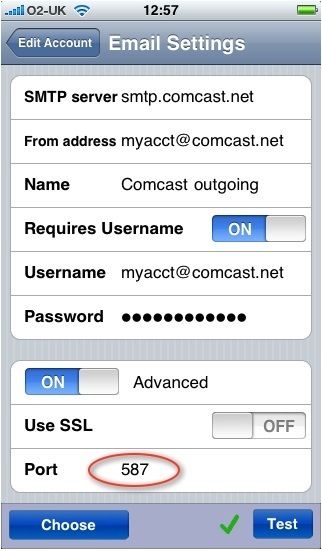
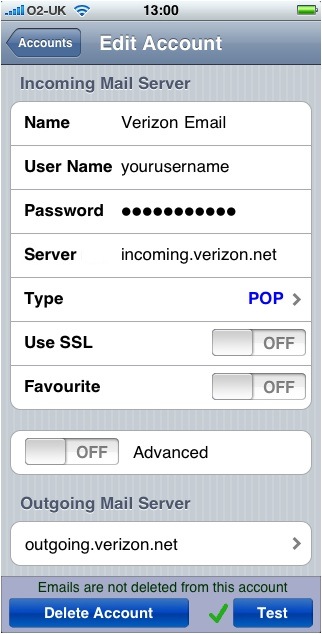
3) Look at the screenshots below and type all information as you see
it, remember to use your own user name and password in the same format
as below
4) Now hit test and you should get a green check mark, if not check
your username and password
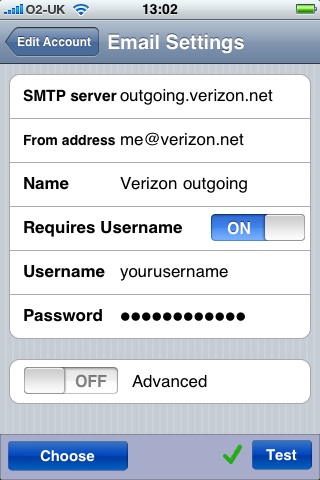
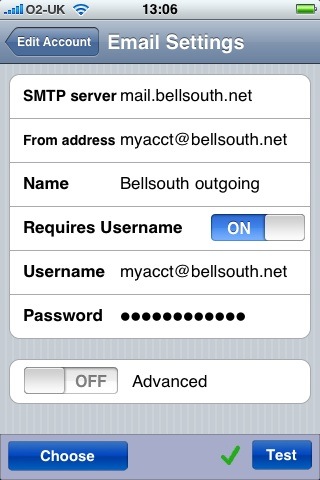
5) Outgoing server - Scroll to the bottom of the screen and tap on the
outgoing server button and enter the information as per below and click
test.
Verizon
Back to top
1) Open Print n Share on your iPhone/iPod and click on "Email" and
click on the + button at the top right of the screen
2) Scroll down and tap the "POP3" account type
3) Look at the screenshots below and type all information as you see
it, remember to use your own user name and password in the same format
as below
4) Now hit test and you should get a green check mark, if not check
your username and password
5) Outgoing server - Scroll to the bottom of the screen and tap on the
outgoing server button and enter the information as per below and click
test.
Back
to top