




Windows WePrint Help
“Error connecting to the server” - Firewall configuration.
In some cases, the Windows Firewall blocks incoming network
connections so the iPhone can't reach your PC.
In this case you can make changes to allow the connection.
View the steps here for Windows 10, Windows 7, Windows XP or Windows Vista
PC-cillin If you have PC-cillin,
click here for configuration information.
Esat Smart Security 5 - If you have Esat Smart Security 5 click here to download a PDF configuration guide
If you are using a 'third party' firewall (Symantec, Norton, Kaspersky, Mcafee, Avast, AVG, ZoneAlarm) then you will need to refer to your particular firewall's documentation for how to do this. The easiest option is probably just to search (using a search engine, such as Google) for 'How do I add an a program as an exception in X' with "X" being the name of your firewall software.
Please ensure you update your firewall to the latest version avaiable, often older versions do not allow configuration.
Windows 7
If you get a Windows message asking for the WePrint server to allow connections, then accept the message.
If you are using the Windows Firewall, you may need to configure it to allow the WePrint server to receive connections from the iPhone.
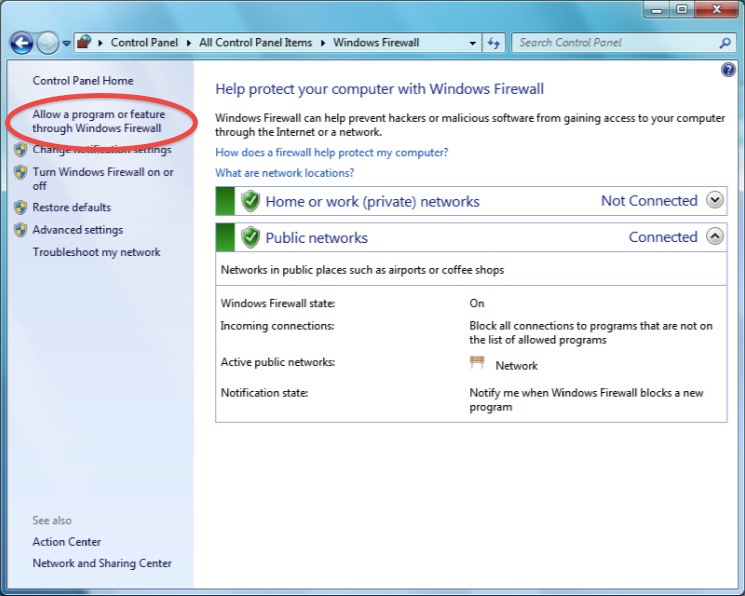
Check the status of the Firewall by opening the Windows Control Panel and double clicking on “Windows Firewall”. You should then see the window below.
In top left, click on “Allow a program or feature through Windows Firewall”
Click on “Change Settings” button
Click on “Allow another Program”
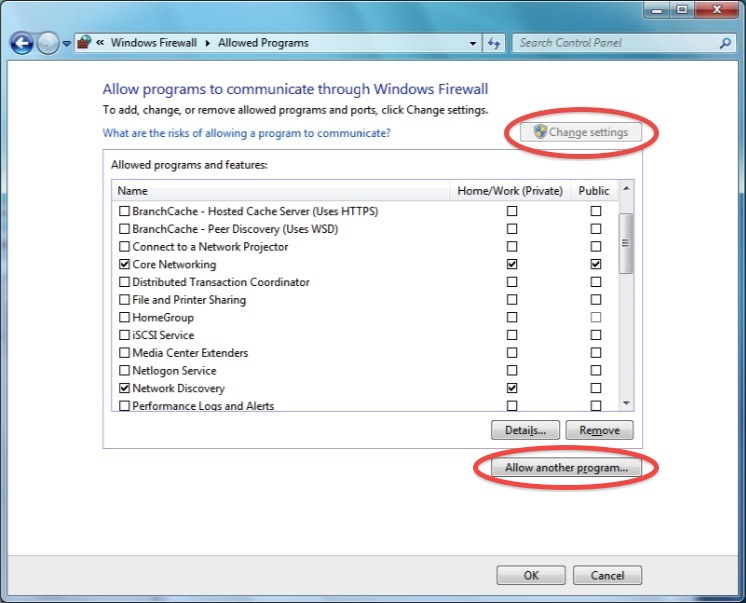
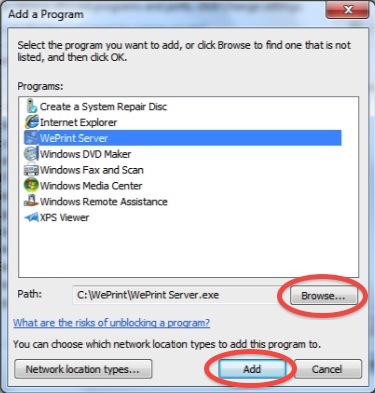
Select WePrint from the screen or click on “Browse” to find it, eg C:\WePrint\WePrint Server
Click "Add" and make sure WePrint is shown in the Allowed Programs list
Click on "OK and close the Windows Firewall window.
If you still have problems, make sure there are no other AntiVirus or security software blocking network connections, otherwise contact our helpdesk.
Windows XP
If you get a Windows message asking for the WePrint server to allow connections, then accept the message.
If you are using the Windows Firewall, you may need to configure it to allow the WePrint server to receive connections from the iPhone.
Check the status of the Firewall by opening the Windows Control Panel and double clicking on “Security Center”. You should then see the window below.
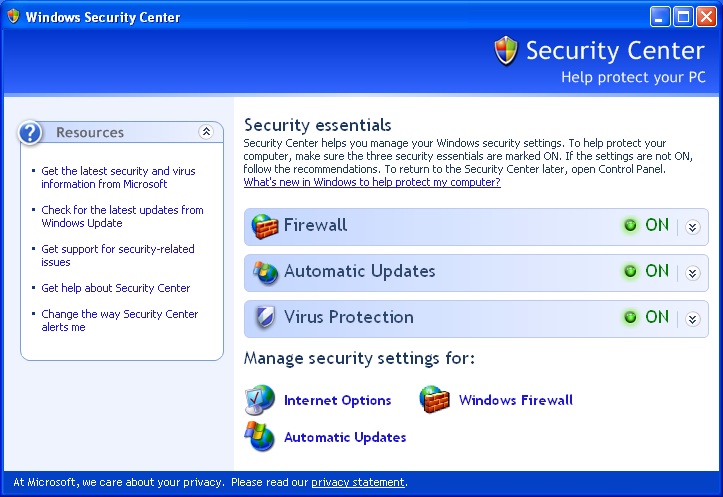
If your Firewall is off, then the Firewall will not be the
cause of a connection problem.
Otherwise, click on the “Windows Firewall” button at the bottom of the window to edit the Firewall settings.
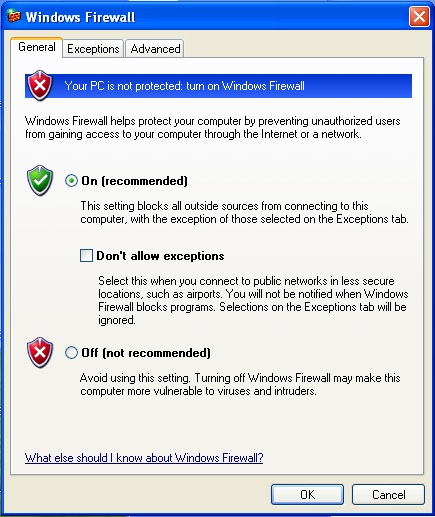
If the Firewall is set to On, make sure the “Don't allow exceptions” button is not checked, so it looks like the picture above.
If you are still having problems connecting, try a test to see if the Firewall is causing the connection problem. Turn off your Firwall in the window above, then restart the WePrint server and try to connect from your iPhone
If turning off the firewall solves your connection problems, then turn it back on and click on the “Exceptions” tab in the window above.
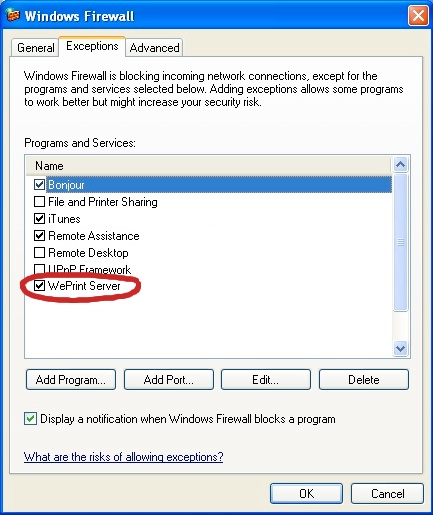
Make sure you can see the “WePrint server” in the Exceptions list and that the checkbox is on to allow access, as in the window above
You may need to click the “Add Program” button to select the WePrint server and add it. WePrint is usually installed in the directory C:\WePrint\.
If you still have problems, click on the “Add Port” button and add the WePrint port as shown in the WePrint window. You will see the window below.
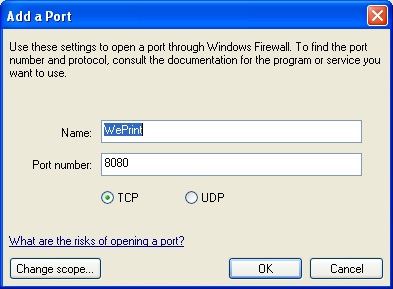
If you still have problems, make sure there are no other AntiVirus or security software blocking network connections, otherwise contact our helpdesk.
Windows Vista
If you get a Windows message asking for the WePrint server to allow connections, then accept the message.
If you are using the Windows Firewall, you may need to configure it to allow the WePrint server to receive connections from the iPhone.
Check the status of the Firewall by opening the Windows Control Panel and double clicking on “Windows Firewall”. You should then see the window below.
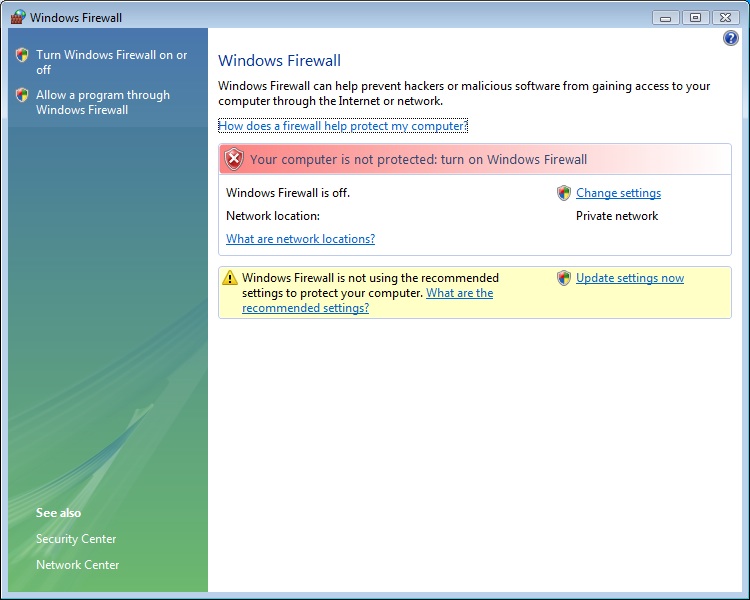
If your Firewall is off, then the Firewall will not be the
cause of a connection problem.
Otherwise, click on “Change settings” to edit the Firewall settings.
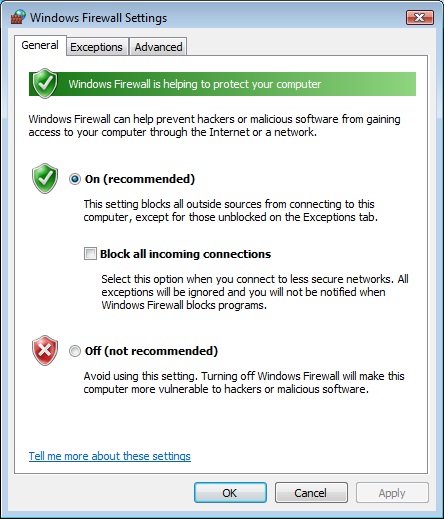
If the Firewall is set to On, make sure the “Block all incoming connections” button is not checked, so it looks like the picture above.
If you are still having problems connecting, try a test to see if the Firewall is causing the connection problem. Turn off your Firwall in the window above, then restart the WePrint server and try to connect from your iPhone
If turning off the firewall solves your connection problems, then turn it back on and click on the “Exceptions” tab in the window above.
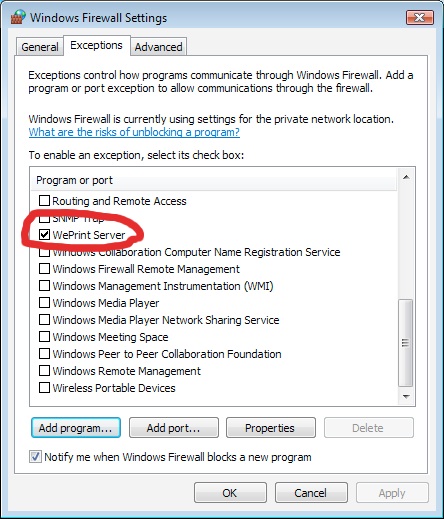
Make sure you can see the “WePrint server” in the Exceptions list and that the checkbox is on to allow access, as in the window above
You may need to click the “Add Program” button to select the WePrint server and add it. WePrint is usually installed in the directory C:\WePrint\.
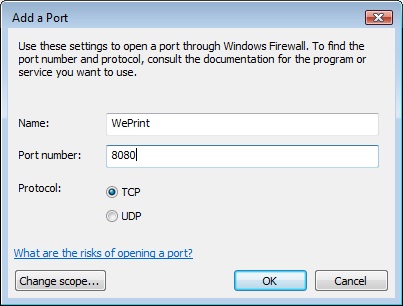
If you still have problems, click on the “Add Port” button and add the WePrint port as shown in the WePrint window. You will see the window below.
If you still have problems, make sure there are no other AntiVirus or security software blocking network connections, otherwise contact our helpdesk.


